
 Ink Brands
 Why Printer Not Recognising Cartridge?
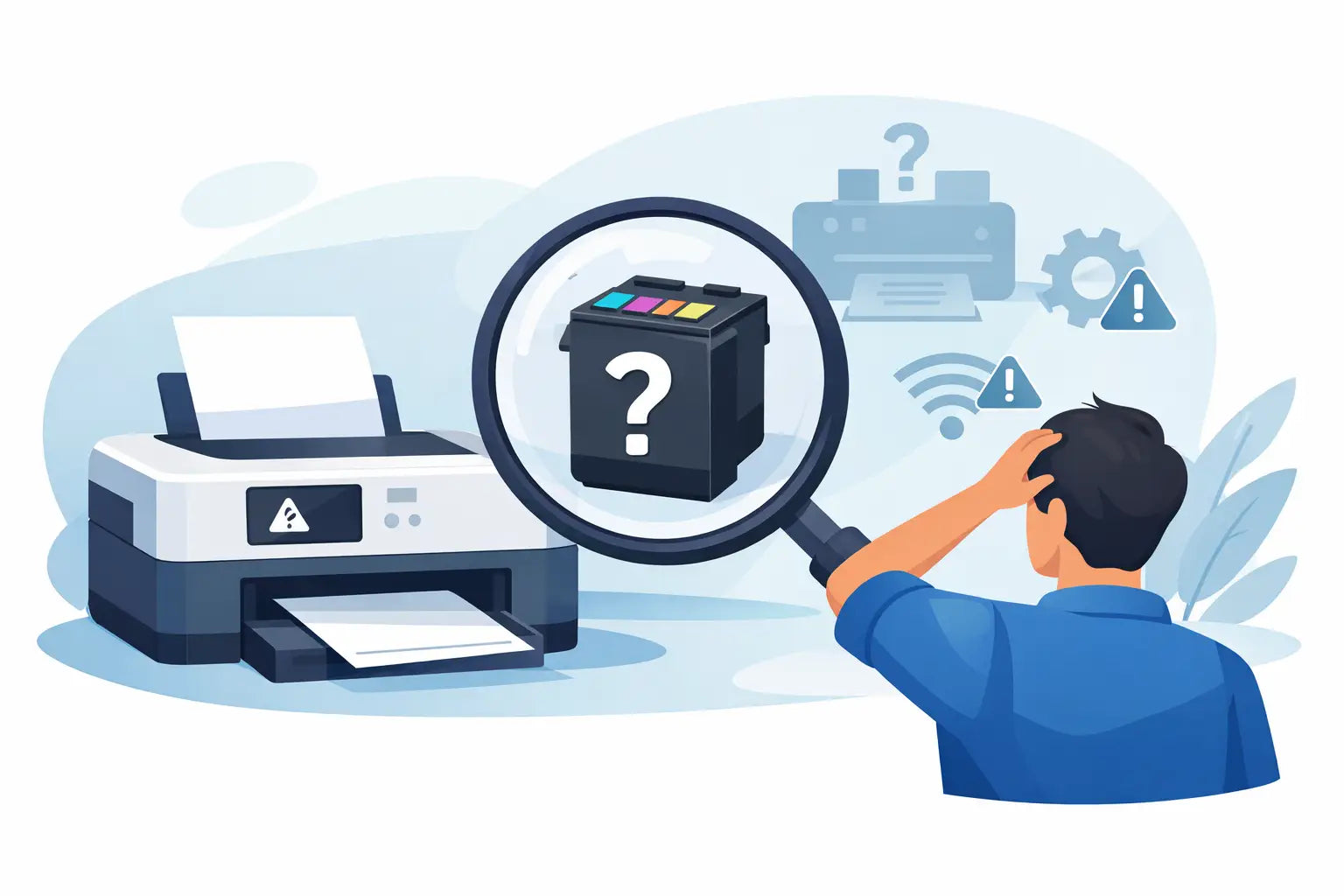
You only need to print one school form, invoice or return label, and suddenly the printer throws up a cartridge error. If you are wondering why printer not recognising cartridge problems happen so often, the short answer is that printers are fussy. The longer answer is that the issue can come from installation, chip compatibility, protective packaging, firmware, or the cartridge itself.
The good news is that a cartridge recognition error does not always mean you bought the wrong product or that the printer is on its last legs. In many cases, the fix is simple and takes a few minutes. The key is knowing what the printer is actually reacting to.
Why printer not recognising cartridge errors happen
A printer does not just check whether a cartridge physically fits. It also checks whether the cartridge chip can communicate properly, whether the cartridge is seated correctly, and whether the printer believes that cartridge is suitable for the model.
That is why two cartridges that look almost identical can behave very differently. One may click in and work immediately, while another may trigger messages such as “cartridge not recognised”, “incompatible cartridge” or “install genuine cartridge”. Sometimes the cartridge is fine and the problem sits with the printer. Other times, the cartridge needs to be reinstalled or replaced.
For home users and small businesses, this is where things get frustrating. You are not trying to troubleshoot a machine for fun. You just need the printer working again without wasting money on guesswork.
Start with the simple checks first
Before assuming the cartridge is faulty, remove it and inspect it carefully. A surprising number of recognition issues come down to protective tape or a small plastic tab that was missed during installation. If that seal is still covering the ink outlet or contacts, the printer may not detect the cartridge at all.
Next, check that the cartridge is the exact match for your printer model. Printers within the same brand can use different cartridge series, even when the cartridges look similar. A Canon cartridge made for one PIXMA range, for example, may not work in another. The same goes for HP, Epson, Brother and other major brands.
Then reinstall the cartridge slowly and firmly. It should sit properly in the carriage and click into place where required. If it is slightly out of position, the contacts may not line up and the printer will read it as missing or incompatible.
Dirty or damaged contacts are a common culprit
Most modern cartridges use a small electronic chip or a set of metal contacts so the printer can identify them. If those contacts are dirty, scratched or blocked, recognition can fail.
This can happen if a cartridge has been handled a lot, stored poorly or knocked around in transit. It can also happen inside the printer if dust, dried ink or toner residue builds up on the contact points.
If you can see visible marks, gently wipe the cartridge contacts with a clean, dry, lint-free cloth. Do not use anything too wet, and do not scrub hard. While you are there, check the printer’s internal contact area for obvious dust or ink build-up. A careful clean can sometimes sort the problem straight away.
If the chip itself looks damaged or missing, that is different. In that case, the cartridge is unlikely to recover and replacement is usually the practical option.
Genuine and compatible cartridges can both raise errors
There is a common assumption that only compatible cartridges cause recognition issues. That is not really true. Genuine cartridges can also fail to register if they are damaged, installed incorrectly or affected by a printer fault.
That said, compatible cartridges do add another variable. They are designed to work like the original, but they rely on a chip that must communicate correctly with the printer. A good-quality compatible cartridge should do that reliably, but quality varies across the market.
This is why supplier choice matters. A cheap cartridge from an unknown seller may save a few dollars upfront but create more hassle if the printer rejects it. A reputable retailer that clearly matches cartridges to printer models and stands behind what it sells removes a lot of that risk.
Firmware updates can change the rules
One of the more annoying answers to why printer not recognising cartridge messages appear is printer firmware. Manufacturers sometimes release firmware updates that affect how the printer checks cartridges, especially non-original ones.
You may have used the same type of cartridge before without a problem, then after an update the printer suddenly refuses it. That does not always mean the cartridge is poor quality. It can mean the printer’s software now applies stricter checks.
This is one of those situations where it depends on your printer brand, model and update history. Some users prefer to keep firmware current for security and bug fixes. Others avoid optional updates if their printer is already working well with their chosen cartridges. There is no one-size-fits-all answer, but it helps to know firmware can be part of the story.
The cartridge may be new, but the printer still thinks it is old
Some printers store cartridge data and do not refresh it properly after a swap. This can happen when you replace only one cartridge in a set, or when the printer has previously thrown multiple errors.
A simple restart often helps. Turn the printer off completely, unplug it from power for a minute, then restart and reinstall the cartridge. This gives the printer a chance to reset its cartridge memory.
If that does not work, look for a maintenance or reset option in the printer menu. Not every model offers this, but some do. Just be careful not to factory reset the whole device unless you are comfortable setting it up again.
Toner and ink printers fail differently
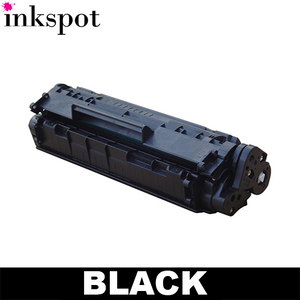
Inkjet printers tend to be more sensitive to cartridge chip and contact issues. Toner printers, on the other hand, can be more particular about whether the cartridge is fully seated and whether seals have been removed properly.
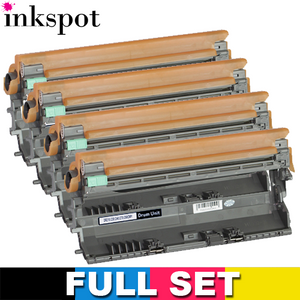
With toner, one common mistake is leaving part of the shipping seal or protective strip in place. Another is confusing the toner cartridge with the drum unit, especially in Brother and similar printers where the two components are separate. If the wrong part has been replaced, or if the toner has not been locked into the drum correctly, the printer may throw a cartridge error.
With ink cartridges, the problem is often smaller but just as annoying. A tiny bit of tape over a vent, a misaligned cartridge, or dirty contacts can be enough to stop recognition.
When the issue is actually the printer
If you have checked the cartridge, cleaned the contacts, confirmed compatibility and restarted the printer, the fault may sit with the printer itself. Internal contact pins can bend or wear over time. Cartridge carriage assemblies can become damaged. In some cases, the printer’s sensor board may simply stop reading cartridges properly.
This becomes more likely if multiple cartridges fail to register, including ones that previously worked. If every new cartridge suddenly comes up as unrecognised, the printer deserves a closer look.
For an older machine, there is a practical cost question here. If the printer is inexpensive and repair will cost more than replacement, chasing a hardware fault may not make sense. For a business printer or a higher-end model, professional repair could be worthwhile.
How to avoid cartridge recognition problems next time
The easiest way to reduce these issues is to buy carefully and install carefully. Make sure the cartridge is matched to your exact printer model, not just the brand name. Keep packaging until the cartridge is confirmed working. Open cartridges only when you are ready to install them, and store spares in a cool, dry place.
It also helps to buy from a supplier that offers clear compatibility information and local support. If a cartridge genuinely has a problem, being able to sort it quickly matters. That is especially true for offices, remote workers and anyone who only discovers a printer issue five minutes before they need to use it.
If you use compatible cartridges to keep printing costs down, stick with proven products rather than treating every purchase as a lucky dip. There is real value in saving money, but consistency matters too.
What to do if your printer still will not recognise the cartridge
At that point, stop forcing it. Repeatedly removing and reinserting the cartridge can damage contacts or create more confusion. Double-check the cartridge code, inspect for missed seals, restart the printer, and test another cartridge if you have one available.
If a second compatible cartridge works, the first one is likely faulty. If no cartridge works, the printer may be the issue. If a genuine cartridge works but a compatible one does not, compatibility or firmware is the likely cause.
That kind of process may feel a bit tedious, but it is the fastest way to narrow down the problem without throwing money at the wrong fix. And if you are buying from a retailer that knows printer consumables properly, support should be part of the value, not an extra hassle.
Printers have a knack for failing at the worst possible moment, but cartridge errors are often more fixable than they first appear. A calm check of the basics usually gets you closer to the answer than replacing half the setup in frustration.