
 Ink Brands
 How to Fix Streaky Prints Fast
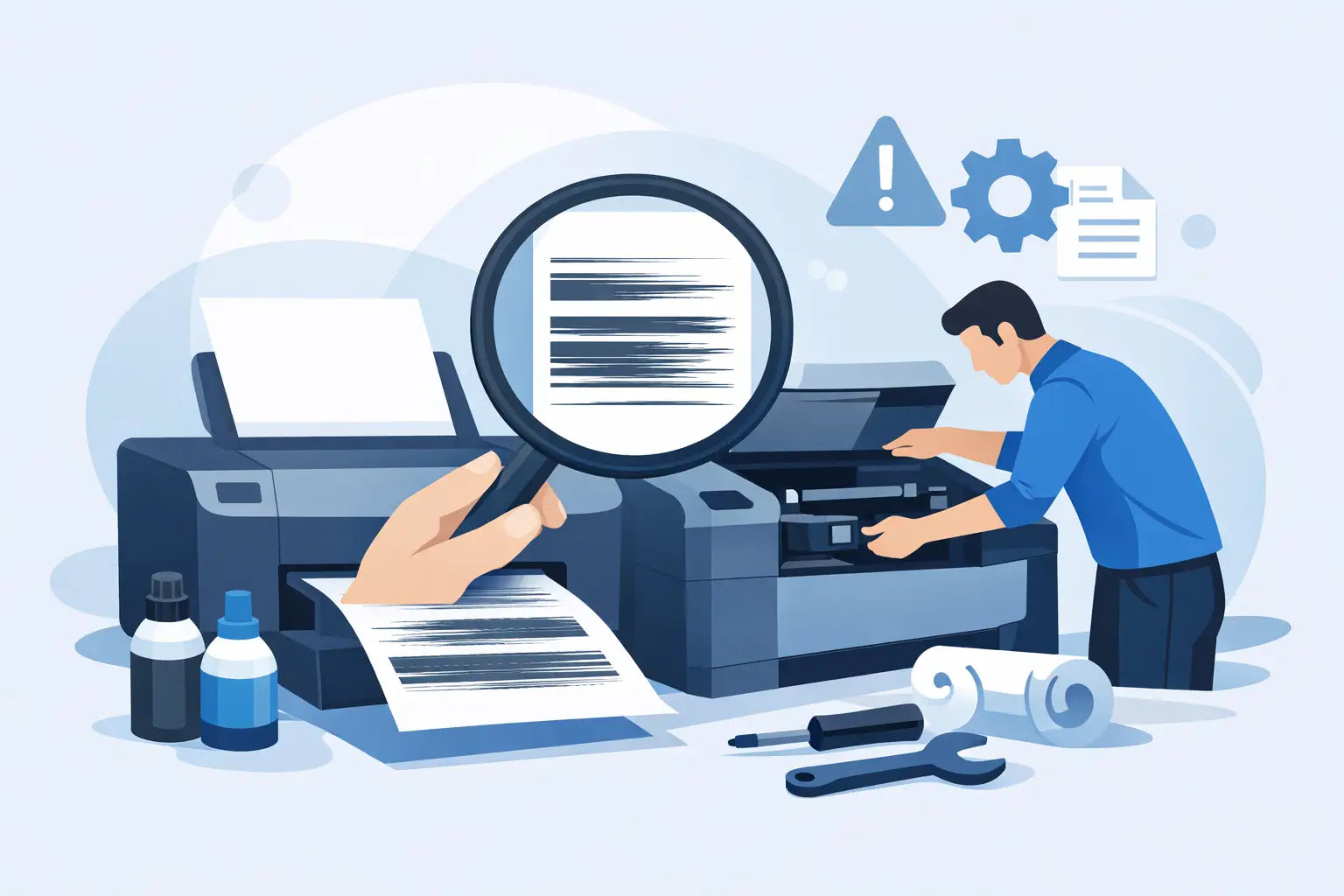
A page comes out with lines through the text, faded bands across photos, or one side looking patchy while the other seems fine. If you're trying to work out how to fix streaky prints, the good news is that the cause is usually fairly simple - and often fixable in a few minutes without touching a screwdriver.
Streaks tend to come from one of three places: the cartridge, the printer's internal components, or the print settings. The trick is to work through them in the right order so you do not waste ink, toner or time.
How to fix streaky prints without guesswork
Start with a test print. Most printers let you print a nozzle check, print quality report or diagnostic page from the control panel or printer software. This matters because it tells you whether the streaking affects all colours, only black, or just certain sections of the page.
If black text looks faint but colour graphics are fine, the black cartridge or black printhead is the likely issue. If one colour is missing from photos, that usually points to a clogged nozzle or low cartridge in that colour. If every page has repeating marks at the same interval, the problem is more likely inside the printer than in the file you're printing.
Before doing anything else, check the obvious. Make sure the printer is on a flat surface, the paper is dry and suitable for your printer, and the cartridges are properly installed. A slightly unseated cartridge can cause poor contact and inconsistent output.
Check ink or toner levels first
Low consumables are one of the most common reasons for streaky printing. Inkjet printers may start producing lines when one cartridge is close to empty, even if the printer has not yet flagged it as completely out. Laser printers can also show streaks or fading when toner is running low, especially on larger solid areas.
Look at the printer's status monitor or control panel and check each cartridge level. If one is clearly low, replacing it may solve the issue straight away. It is worth noting that estimated levels are not always perfect, so a cartridge can cause trouble before the warning becomes urgent.
If you've recently installed a new cartridge, check that all protective tape or clips have been removed. It sounds basic, but it catches plenty of people out.
Run a cleaning cycle, but do not overdo it
For inkjet printers, clogged nozzles are a very common cause of streaks. Running the printer's built-in head cleaning utility can clear dried ink and restore proper flow. In most cases, one cleaning cycle followed by another test print is enough to tell you whether you're on the right track.
If the first clean improves the page but does not fully fix it, try a second cycle. After that, it is better to pause and reassess. Repeated cleaning uses a surprising amount of ink, and if three cycles have not solved the issue, the cause may be something else.
Some printers also offer a deep clean or power clean option. Use this sparingly. It can help with stubborn blockages, but it uses more ink and is best saved for a genuine clog rather than general poor quality.
Common causes of streaky prints by printer type
Inkjet and laser printers can both produce streaks, but the reasons are not always the same.
Inkjet printers
With inkjets, the main suspects are clogged printheads, drying ink, misaligned printheads, or cartridges that are empty, faulty or incompatible. Printers that sit unused for long periods are especially prone to clogged nozzles because the ink can dry in the printhead.
Printhead alignment is also worth checking. If text looks shadowed or lines appear slightly offset rather than simply faded, running the alignment tool may help. This is a quick maintenance step available in most printer software menus.
Laser printers
With laser printers, streaks are more often linked to toner distribution, the drum unit, the fuser, or debris inside the machine. If you remove the toner cartridge and gently rock it from side to side, you may get a temporary improvement from redistributed toner. That is not a long-term fix, but it can confirm that low or uneven toner is part of the problem.
If streaks repeat at regular intervals down the page, the drum may be worn or marked. Some printers have the toner and drum built together; others use separate units. That distinction matters because replacing toner alone will not fix a damaged drum.
Clean the parts the printer can safely access
Paper dust, loose toner and general build-up can all affect print quality. Turn the printer off, unplug it, and open any access panels the manual says are user-serviceable. Then look for obvious debris, scraps of paper or toner dust.
Use a soft, dry, lint-free cloth to gently wipe accessible areas. Do not use household cleaners, and do not touch the drum surface with your fingers unless the manufacturer specifically says it is safe. Drums are sensitive, and even a small smudge can make things worse.
For inkjet printers, if the cartridge has an integrated printhead, carefully removing and reinstalling it can sometimes improve contact. If the contacts look dirty, a very light wipe with a dry lint-free cloth may help. Let everything sit for a minute before powering back on.
When settings are causing the problem
Not every streaky print comes from a hardware fault. Sometimes the issue is the paper setting, print quality mode or file itself.
If you are printing on plain office paper but the printer is set to glossy photo paper, too much ink may be laid down and cause smearing or uneven output. If the quality is set to draft mode, text and graphics can appear faint or banded. Check that the selected paper type matches what is actually in the tray, and try switching from draft to standard or high quality.
It is also worth printing a different document. If one PDF or image file shows streaks but the printer's own test page looks clean, the problem may be in the file or software rather than the printer.
Check the paper as well
Paper does not get enough blame. Damp, curled or low-grade paper can lead to uneven toner transfer, ink absorption problems and marks that look like cartridge issues. In humid conditions, paper can absorb moisture from the air surprisingly quickly.
If the paper feels limp, has been sitting open for ages, or looks slightly curled, swap in a fresh ream. For laser printers especially, using paper that is too smooth or too lightweight can affect toner adhesion.
When replacing the cartridge is the right move
If you've checked levels, run maintenance, cleaned accessible areas and adjusted settings, but the streaks are still there, the cartridge itself may be the issue. This is especially likely if the problem started suddenly after installing a new cartridge or if the print quality keeps declining despite maintenance.
A faulty cartridge can cause inconsistent ink flow, poor toner distribution or contact problems. Compatible cartridges can offer excellent value, but quality does vary between suppliers. The important thing is buying from a retailer that clearly matches cartridges to printer models and stands behind what it sells.
If you're weighing up genuine versus compatible replacements, the best choice depends on your budget, how often you print, and whether your printer is particularly sensitive. For everyday home and office printing, a reliable compatible cartridge can be a practical way to keep costs down without sacrificing consistent results.
Signs the printer needs more than basic maintenance
Sometimes streaks are a signal that the printer itself needs repair or replacement. If you see repeated marks at exact intervals, hear unusual noises, get frequent paper jams alongside poor print quality, or find that new cartridges make no difference, an internal component may be worn.
Older printers can also reach a point where ongoing troubleshooting costs more in time and consumables than the machine is worth. That is not always the answer people want, but it is worth being realistic, especially for busy small offices that need dependable output.
If the printer is still under warranty, contact the manufacturer before trying anything beyond normal user maintenance. If it is out of warranty, compare the cost of a drum, printhead or service call against the price of keeping the printer stocked with the right consumables and moving on from a troublesome unit.
The best way to avoid streaky prints in future is simple: use the printer regularly, store paper properly, install the correct cartridges, and run maintenance as soon as quality starts to slip rather than waiting until pages become unreadable. A printer that gets a bit of attention usually gives fewer headaches back. And if a replacement cartridge turns out to be the missing piece, choosing the right one from the start saves a lot of trial and error.