
 Ink Brands
 How to Find Printer Cartridge Number Fast
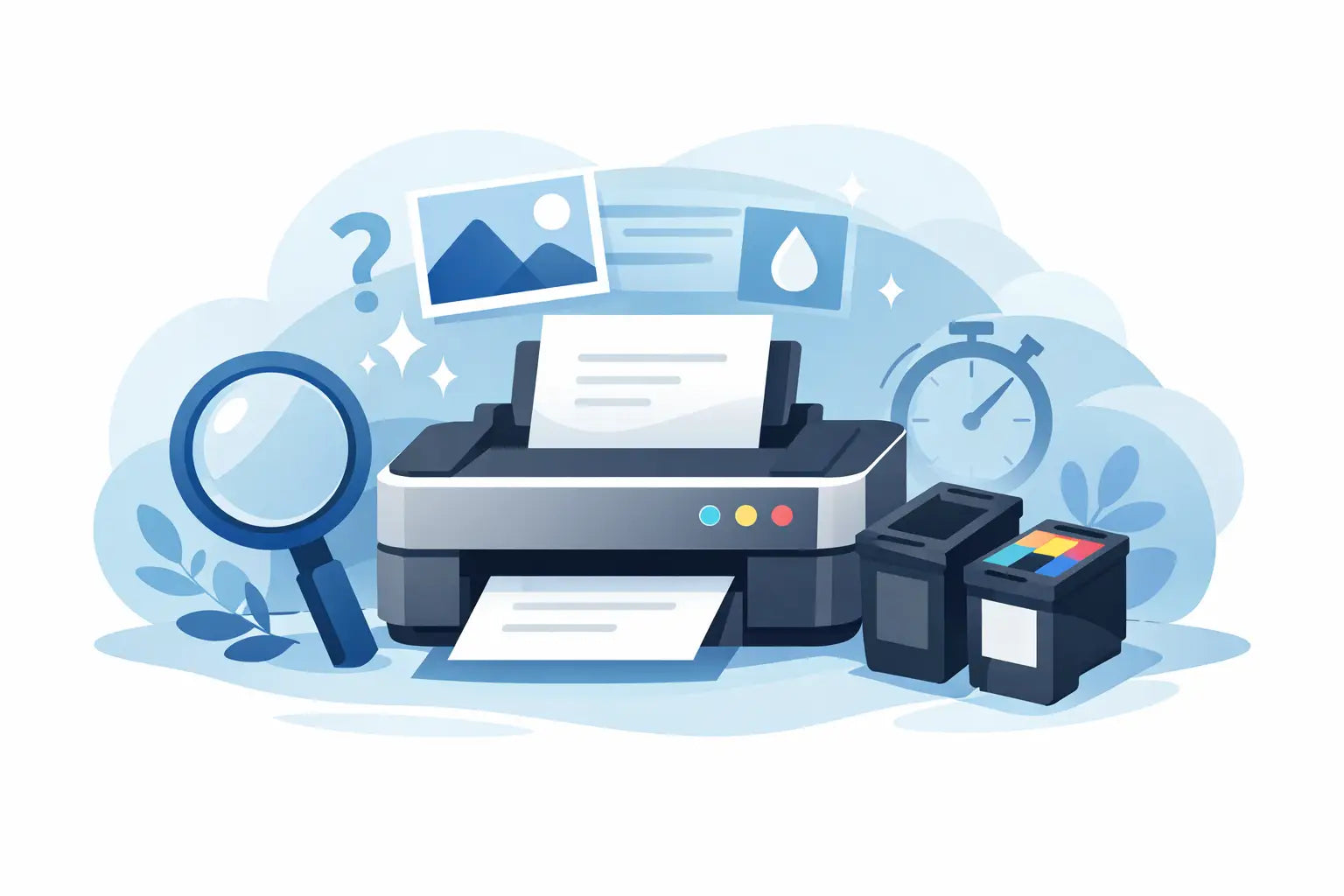
Ordering the wrong cartridge is one of those annoyances that should be easy to avoid, yet it still catches plenty of people out. If you have ever stood over a printer with an empty cartridge in one hand and a confusing product page in the other, you are not alone. The good news is that learning how to find printer cartridge number is usually much simpler than it looks.
In most cases, the answer is sitting in one of three places: on the old cartridge itself, on the printer model label, or inside the printer’s settings or software. The trick is knowing which number actually matters, because printers often show several codes, serial numbers and labels that have nothing to do with the cartridge you need.
How to find printer cartridge number on the cartridge itself
If you still have the empty or low cartridge, start there. This is usually the quickest and most reliable option.
Most ink and toner cartridges have a cartridge number printed directly on the label. Depending on the brand, it may appear as a number only, a mix of letters and numbers, or a series name followed by a colour. Common examples include HP 67, Canon PG-645, Epson 212 or Brother TN-253.
The key is to ignore long serial strings and manufacturing codes. What you want is the model or cartridge number used for ordering replacements. It is often printed in larger text than the rest of the label and may sit near the brand name or colour marker.
For inkjet printers, each colour cartridge may have its own number. Black and tri-colour cartridges can also be separate from standard colour sets. For laser printers, the toner cartridge number is usually very clear, but there may also be separate numbers for drum units, waste toner bottles or maintenance kits. That matters, because a toner cartridge and a drum are not always the same thing.
If the label is smudged, faded or partly torn, take the cartridge out under good light and check all sides. Some brands place the number on the top edge or under a clip. You can also compare the cartridge shape and branding against your printer model, but the printed number is still the safest option when it is readable.
How to find printer cartridge number using your printer model
If the old cartridge has already gone in the rubbish, the next best method is to use the printer model.
Every printer is designed to work with specific cartridges, and the model number will tell you which ones are compatible. You can usually find the printer model on the front of the machine, on a sticker near the paper tray, behind the front panel, or on the back near the power cord. It may say something like HP Envy 6020e, Brother MFC-J4540DW or Canon PIXMA TS5360a.
This is where people often trip up. The printer model is not the same as the cartridge number. You do not order a cartridge by asking for the printer name alone unless you are using a compatibility search tool. The printer model helps you look up the right cartridge number, but it is not the refill itself.
It also pays to be exact. A missing letter or number at the end of a model name can point to a different machine, and sometimes a different cartridge series. If your printer says XP-4100 and you search XP-410, you may end up with the wrong result. Close enough is not always good enough in printer consumables.
Where the model number is usually located
On home printers, the model is often printed prominently on the front panel. On office machines, it may be smaller and tucked onto a side or rear sticker. If you cannot see it easily, open the scanner lid or front access panel and check for a product label inside.
If the outside labels are worn, the original box or manual may still have the model listed. For shared office printers, the IT setup notes or asset register can also help.
Check the printer screen or software
Many modern printers can tell you which cartridge they use through the printer display, companion app or installed software on your computer.
On some printers, you can open the ink or toner status menu and see the cartridge series listed there. Others show only the remaining levels, so this method depends on the brand and age of the printer. It is still worth checking, especially if you no longer have the packaging or old cartridges.
If your printer is connected to a computer, open the printer utility or device settings. Brands such as HP, Epson, Brother and Canon often include maintenance software that displays supply information. In some cases, it will show the exact cartridge number. In others, it may only identify the colour or cartridge position, so you may still need the printer model to confirm the replacement.
This method is handy for busy offices where no one wants to remove cartridges just to check a label. It is less useful if the printer is offline, showing errors, or no longer connected to the original computer.
Why cartridge numbers can be confusing
Printer brands have not made this as simple as they could. A single printer range may use standard-yield and high-yield cartridges with different numbers. Some regions also use different numbering systems for what is effectively the same cartridge.
Then there is packaging. You might see a single cartridge sold on its own, in a multipack, or in an XL version with a separate code. All may suit the same printer, but they are not identical products. If you print often, the higher-yield option can work out better value per page. If you print only occasionally, a standard cartridge may make more sense.
It also depends on whether you want genuine or compatible cartridges. Genuine OEM cartridges come from the printer manufacturer. Compatible cartridges are made by third parties to work with the same printer model. Plenty of Australians choose compatibles to reduce printing costs, but you still need the correct cartridge number to match your printer properly.
Standard vs high-yield numbers
Some brands keep the same base number and add XL or XXL. Others use a completely different code. That means you cannot assume the bigger cartridge is just a larger version of the same label.
If you see both options for your printer, check your printing habits before choosing. A home user printing schoolwork once a week has different needs from a small business printing invoices every day.
Common mistakes when looking for the right cartridge
The biggest mistake is using the printer’s serial number instead of the model number. Serial numbers are unique to your machine and are used for warranty or service, not for finding ink or toner.
Another common issue is confusing toner, drum and ink bottle numbers. Laser printers may require more than one consumable over time, and refill-tank printers use bottled ink rather than cartridges. If your printer has visible tanks with coloured windows, you probably need ink bottles, not cartridges.
People also get caught by old packaging. If a previous owner used a substitute cartridge, the box on hand may not reflect the ideal product for the printer. The safer move is to verify compatibility using the printer model and the cartridge label together.
The easiest way to be sure
If you want the least guesswork, match the printer model with the cartridge number from the old cartridge whenever possible. When both pieces of information line up, you can order with much more confidence.
This is also the point where a proper printer finder or compatibility search becomes useful. Rather than sorting through dozens of product names, you enter the printer model and narrow the choice quickly. For anyone ordering for a workplace, or replacing cartridges across several printers, that saves time and cuts down ordering mistakes.
At Inkspot, this is exactly the kind of confusion we aim to remove. Whether you are buying genuine cartridges or looking for a lower-cost compatible option, the right match starts with the correct printer model or cartridge number.
When to ask for help
Sometimes the labels are unreadable, the printer is old, or the machine has been inherited from a previous employee or housemate. In those cases, getting a second check is worth it.
A quick photo of the printer model label and the old cartridge can usually clear things up. This is especially helpful with business printers, where one wrong toner order can be an expensive mistake. It is better to pause for five minutes than end up with supplies that do not fit.
Once you know how to find printer cartridge number, reordering gets much easier the next time around. Save the cartridge code in your notes app, snap a photo of the box, or keep a record with your printer model so you are not starting from scratch when the next low-ink warning appears.