
 Ink Brands
 Why Printer Colours Fade and What You Can Do
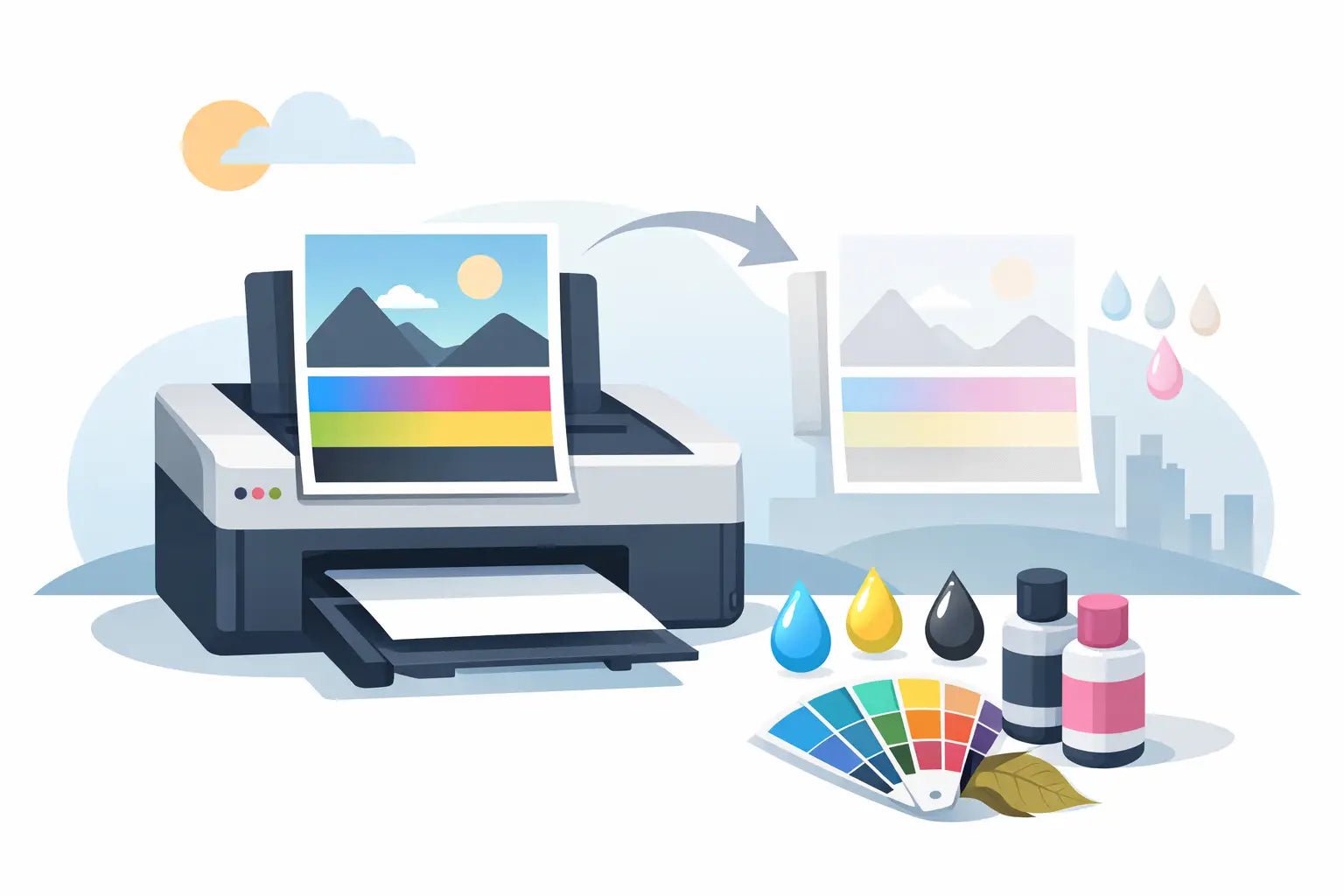
A faded printout is more than a cosmetic annoyance when you need a school assignment, client proposal, shipping label or family photo to look right. When printer colours fade, the cause may be as simple as a low cartridge, but it can also come down to paper, print settings, clogged nozzles or the way the page is stored. The good news is that most fading problems can be identified without replacing the printer.
Why printer colours fade
Colour printing relies on several inks or toners working together. If one colour is running low, blocked or not being applied properly, the whole image can look washed out or take on an odd colour cast. A blue sky may print purple, skin tones may look greenish, or black text may appear grey.
For inkjet printers, fading is often linked to the printhead or ink flow. Ink can dry in the tiny nozzles when a printer sits unused for a while, especially in warm or dry conditions. For laser printers, a faded page is more likely to point to toner levels, toner distribution, a drum issue or a print-density setting.
It also helps to separate two different problems. If a page comes out faded immediately, you are dealing with a printing problem. If it looks good at first but fades weeks or months later, the issue is usually the paper, ink type or exposure to sunlight, heat and moisture.
Start with the easiest checks
Before ordering new cartridges, print a nozzle check, print-quality report or diagnostic page from your printer's maintenance menu. Most printers can produce one without using your computer. This page shows whether each colour is printing cleanly and evenly.
If a colour is missing, broken into lines or much lighter than the others, check the cartridge status next. Do not rely only on the low-ink warning. A cartridge can still show ink remaining while poor ink flow or a blocked nozzle affects the result.
Also check your print settings. Draft, Economy and Ink Saver modes are useful for everyday documents, but they deliberately use less ink or toner. They can make colours look pale and images less detailed. For presentation pages, photographs or customer-facing materials, select Standard, High or Best quality and make sure colour printing is enabled.
Paper matters more than many people expect. Thin office paper absorbs ink quickly, which can make images look dull. Glossy photo paper needs to be printed on the correct side and matched to the paper type selected in the printer settings. If the printer thinks it is printing on plain paper, it may apply too little ink for a richer photo finish.
A quick test before you spend money
Print the same file in normal quality on fresh, suitable paper. If the new page is noticeably better, the printer itself is probably fine and the setting or paper was the problem. If it is still faded, move on to cartridge and maintenance checks.
Inkjet printers: clean nozzles carefully
An inkjet printer that has not been used for several weeks can develop partial nozzle blockages. You may see faint colours, white lines through photos or one colour that barely appears at all. This is particularly common with printers used occasionally for home paperwork.
Run the printer's built-in head-cleaning cycle once, then print another nozzle check. If the result improves but is not perfect, run a second cycle. Avoid repeatedly running cleaning cycles back-to-back. They use a surprising amount of ink and can quickly reduce the remaining cartridge level without solving a more serious issue.
If two cleaning cycles make no difference, confirm that the cartridges are correctly seated and that any protective tape or vent seal was fully removed during installation. A newly fitted cartridge with a blocked air vent can struggle to feed ink properly.
Persistent problems may need a deeper cleaning cycle or professional servicing, depending on the printer model. In some entry-level inkjets, replacing a failing printer can be more economical than an extensive repair. That is frustrating, but it is worth weighing up before buying multiple cartridges in the hope that they will fix a mechanical fault.
Laser printers: check toner and density
Laser printers do not use liquid ink, so printhead cleaning is not the answer. When laser colour prints look faded, begin by checking the toner cartridges. A low toner cartridge may produce pale text or uneven colour before the printer stops entirely.
Gently removing a toner cartridge and rocking it side to side can redistribute loose toner for a short period. This may help you finish an urgent job, but it is not a long-term fix. If print quality improves only briefly, replacement toner is the sensible next step.
Check the printer driver for Toner Save, Eco Mode or reduced-density settings as well. These settings are designed to lower toner use, so fading is expected. Turn them off for important work.
If a fresh toner cartridge does not correct uneven fading, streaks or repeated marks down the page, the issue may be the drum, transfer belt or fuser. Some printers have a separate drum unit, while others build the drum into the toner cartridge. Your printer manual or model information will confirm which setup you have.
The cartridge choice can affect print life
Both genuine and compatible cartridges can deliver strong everyday printing when they are correctly matched to the printer and made to a dependable standard. Genuine cartridges are made by the printer manufacturer and may suit users who need manufacturer-branded consumables for particular workflows. Compatible cartridges are a lower-cost alternative designed to work with the same printer models.
The better choice depends on your printing needs, budget and the quality of the product you buy. Very cheap, unknown cartridges can be inconsistent, particularly for photo printing or colour-critical documents. A reputable supplier should clearly identify compatible printer models and stand behind its products.
At Inkspot, customers can choose genuine or compatible ink and toner for their specific printer model, making it easier to balance print quality with running costs. The key is ordering the correct cartridge rather than selecting one that merely looks similar.
When the printed page fades after printing
A document or photo that fades over time has a different set of causes. Direct sunlight is the biggest one. UV light can break down colourants, especially on pages displayed near a window. Heat, humidity and airborne moisture can also affect paper and printed images.
Photo longevity depends on the combination of printer, ink and paper. Standard office paper is suitable for short-term documents, but it is not designed to preserve rich colour for display. For photos or materials you want to keep, use quality photo paper suited to your printer and store prints away from direct sun.
Lamination, framing behind UV-filtering glass and dry storage can help, although no printed item is completely immune to years of light exposure. If you are producing business brochures or signs for outdoor use, consider whether a professionally produced, weather-resistant option is more appropriate than a standard desktop print.
A sensible order for troubleshooting
Work from the least expensive fix to the more involved one. Check print settings and paper first, then print a diagnostic page. For inkjets, run one or two cleaning cycles and inspect cartridge installation. For laser printers, check toner levels and turn off economy settings. Replace cartridges or toner only when the diagnostic results, low levels or poor output point in that direction.
Keep your printer active, too. Printing a small colour page every few weeks can help prevent inkjet nozzles from drying out. Store spare cartridges in a cool, dry place, sealed in their packaging until needed. Do not leave them on a sunny desk, in a hot car or beside a heater.
A clear diagnostic page is usually the best guide: it tells you whether your printer needs a settings adjustment, a maintenance cycle or a fresh cartridge, so you can get dependable colour back without spending more than necessary.