
 Ink Brands
 Printer Model Search Guide for the Right Cartridge
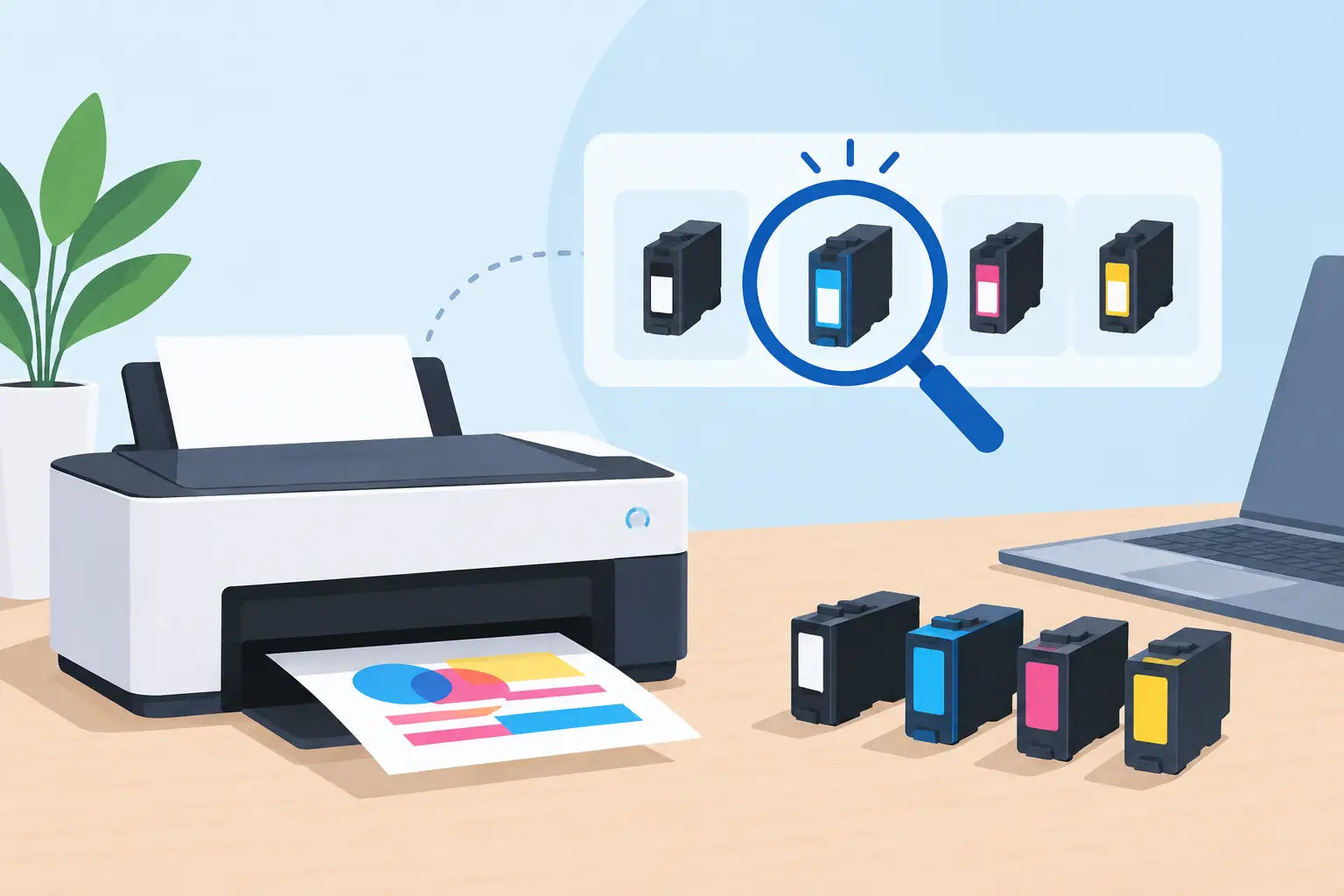
A cartridge can look almost identical to the one you removed and still be wrong for your printer. That is why a reliable printer model search guide starts with the machine itself, not the cartridge colour, box design or a quick guess based on brand. Taking a minute to confirm your exact model can save you from a delayed print job, an unnecessary return and a frustrating trip to the post office.
For home users, that might mean getting school assignments printed on time. For a busy office, it can mean avoiding a last-minute toner shortage before invoices, forms or client documents need to go out. The good news is that finding the right cartridge is usually simple once you know where to look and what details matter.
Start with the full printer model
The printer brand is only the first part of the answer. HP, Canon, Epson and Brother each make many printer ranges, and cartridges are often designed for a specific series or a small group of models. An HP ink cartridge, for example, is not automatically suitable for every HP printer.
Look for the complete model name and number. It may appear as something like Brother MFC-J6955DW, Canon PIXMA TS5360a or Epson WorkForce Pro WF-4830. Small differences in letters and numbers matter. A model with an “a”, “e” or “W” at the end can be a different regional or wireless variant, and may use different consumables.
The model is commonly printed on the front, top or control panel of the printer. If it is not obvious, check the label on the back, underneath the scanner lid, or near the power connection. The label may also list a serial number. Keep in mind that the serial number identifies your individual machine, while the model number is what you need to find compatible ink or toner.
Check your computer or printer app
If the label is faded or the printer sits in an awkward spot, your connected device can help. On a computer, open the printer settings or print queue and look for the device name. The manufacturer’s printer app may also display the exact model.
This method is useful, but it is worth comparing the result with the label where possible. A previous owner, office administrator or technician may have given the printer a custom name such as “Reception Printer”, which does not tell you what cartridge it takes.
Printer model search guide: use model first, cartridge second
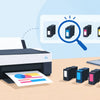
The most dependable way to shop is to enter the full printer model into a printer finder or model search tool. This narrows the results to cartridges made for that machine and removes much of the uncertainty from browsing large ink and toner ranges.
Once you have reached the compatible products, compare the cartridge codes with the ones currently installed in your printer. Codes are usually printed directly on the cartridge label. You might see a number, a number plus letters, or a named cartridge family. This is a valuable second check, particularly if your printer has been used for years or was purchased second-hand.
Do not rely on the cartridge’s physical shape alone. Manufacturers may use similarly shaped cartridges across different ranges, while changing the chip, ink formulation or page-yield design. A cartridge that slides into the holder but is not recognised by the printer is still the wrong cartridge.
It also helps to search using the Australian version of the model. Some overseas printer models have near-identical names but take a different cartridge code. Buying from an Australian supplier that lists compatibility for local printer models reduces the risk of ordering a product intended for another market.
Confirm which cartridges your printer needs
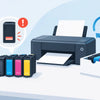
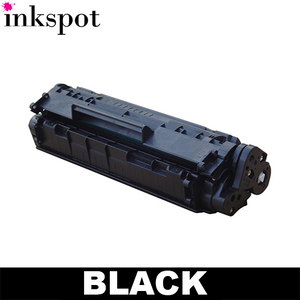
Many inkjet printers use separate cartridges for black, cyan, magenta and yellow. Others use one black cartridge and a tri-colour cartridge. Laser printers generally use toner cartridges, although some models also need a drum unit, waste toner bottle or maintenance kit at certain intervals.
Before ordering, open the printer access door and note what is installed. If your printer uses four individual ink cartridges, replacing only the colour that has run out can reduce waste and help manage costs. On the other hand, some printers will not print if one colour is empty, even when you only need black text. Keeping the full set in mind avoids an unwelcome interruption later.
Pay attention to standard and high-yield options. A high-yield, often labelled XL or high-capacity cartridge, contains more ink or toner and usually costs more upfront. It can offer better value per page for households that print regularly and for workplaces with consistent volume. A standard cartridge may make more sense for occasional printing, especially if you do not want stock sitting unused for long periods.
Page-yield figures are useful for comparison, but they are estimates based on standardised testing. A few text-only pages use far less ink than full-colour photos, presentations or graphics-heavy reports. Think about what you print most often rather than choosing on yield alone.
Choose genuine or compatible cartridges with confidence
After confirming compatibility, the next choice is whether to buy genuine manufacturer cartridges or compatible alternatives. Both options have a place, depending on your budget, print requirements and preferences.
Genuine cartridges are made by the printer manufacturer for its own machines. They can be a sensible choice when a workplace has a specific purchasing policy, when colour consistency is critical, or when you simply prefer original-brand supplies.
Compatible cartridges are new cartridges made by a third party to work with selected printer models. They are not refilled used cartridges. A quality compatible option can provide meaningful savings, which is particularly helpful if your printer gets through ink or toner quickly. The trade-off is that quality can vary between suppliers, so choosing a retailer that clearly states model compatibility and stands behind its products matters.
At Inkspot, customers can choose between genuine and compatible cartridges for many popular printer models. The practical point is not that one option suits every person. It is that the cartridge must match the printer first, then suit how and how often you print.
Avoid the mistakes that cause most cartridge returns
The most common mistake is searching only by brand and selecting the first cartridge that looks familiar. The next is ordering from an old box without checking whether it came from the same printer. This happens often in shared homes and offices where several machines have been used over time.
Another issue is confusing a printer series with the full model. “Epson WorkForce” or “Canon MAXIFY” is not enough information. Those ranges cover multiple printers with different cartridge requirements. Enter the complete model number, including the final letters, before adding anything to your cart.
It is also wise to check whether you need one cartridge or a multipack. A multipack can be convenient and may offer better value when several colours are low. But if only black is empty and you print mostly documents, a single black cartridge could be the more sensible purchase. There is no benefit in buying extra colours early unless you know you will use them.
Finally, do not ignore printer messages. If your printer reports that a cartridge is low rather than empty, it is usually time to order, not necessarily time to replace it immediately. Having a spare on hand is particularly useful for small businesses, remote workers and households without easy access to local supplies.
When the model search does not give a clear answer
Older printers, discontinued models and printers sold as part of office equipment bundles can occasionally be harder to identify. In these cases, photograph the printer’s model label and the cartridge label before seeking support. Clear photos prevent mix-ups and make it easier to verify the correct option.
If you are replacing toner in a laser printer, check whether the alert refers to toner or the drum. They are separate components in many machines. Replacing toner will not clear a drum-life message, and ordering a drum when you only need toner adds an avoidable expense.
For printers that have not been used in months, do not assume a replacement cartridge is the only answer to poor print quality. Inkjet print heads can dry out, while laser printers may need a cleaning cycle or fresh paper. Check the printer’s maintenance settings before replacing supplies that still have usable ink or toner.
Make the next order easier
Once you have confirmed the correct cartridge code, save the printer model and note whether you use standard or high-yield cartridges. Keep the information near the printer, in your office supply list or in a note on your mobile. The next order will take minutes rather than a round of label-reading and guesswork.
A careful first search turns cartridge buying into a routine task instead of a gamble. Find the complete model, verify the cartridge code, choose the yield and type that suit your printing, and keep a spare before the current one reaches empty. Your printer will stay ready when you need it most.