
 Ink Brands
 How to Prevent Paper Jams: 9 Simple Habits
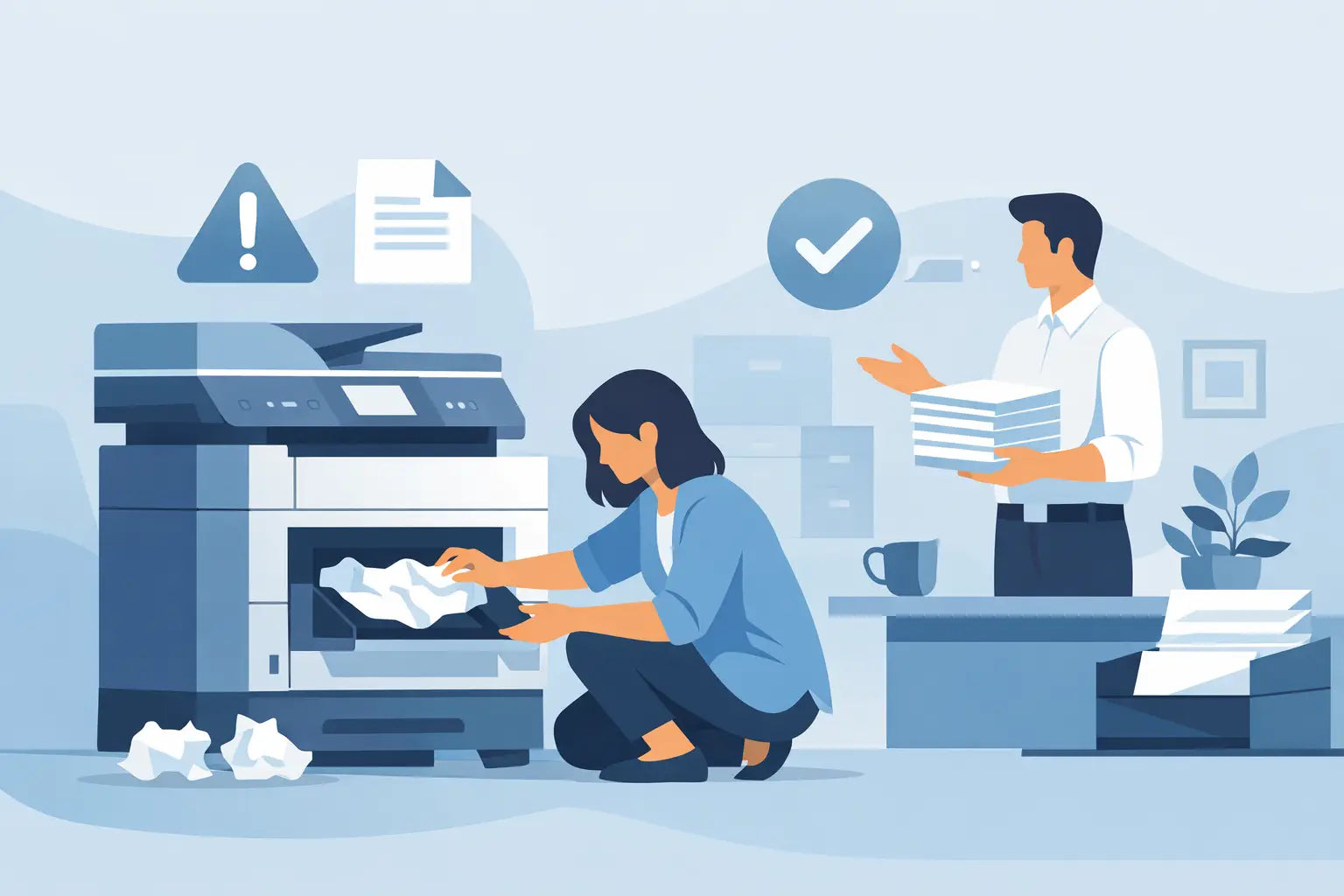
A paper jam always seems to happen when you are printing a school assignment, invoice, return label or meeting pack. The good news is that learning how to prevent paper jams is usually less about technical repairs and more about a few consistent habits: using suitable paper, loading it correctly and keeping the printer clean.
Most printers are designed to handle regular everyday printing without trouble. When jams become frequent, the cause is often easy to identify. Start with the basics before assuming the printer needs replacing.
Why paper jams happen in the first place
A printer moves each sheet through a series of small rollers, guides and sensors. For that to work, the paper needs to be flat, dry, correctly sized and separated into individual sheets. Anything that interrupts that path can cause a jam.
The usual culprits are damp or curled paper, an overfilled tray, mixed paper sizes, worn feed rollers and scraps left behind from an earlier jam. Labels, envelopes and thicker photo paper can also jam if they are not supported by your printer or are loaded using the wrong tray.
A single jam is not necessarily a warning sign. Frequent jams, however, are worth addressing. Repeatedly pulling paper out in a hurry can damage rollers or leave small pieces inside, making the next jam more likely.
1. Use paper that suits your printer
Not all printer paper behaves the same way. Standard 80 gsm copy paper is suitable for most everyday documents, while heavier stock, glossy photo paper, labels and envelopes may require specific printer settings or a manual feed slot.
Check your printer manual or the paper information in its settings before using speciality media. Laser printers use heat, so labels and envelopes must be rated for laser printing. Inkjet printers need paper designed to absorb ink properly. Using the wrong paper will not always cause a jam, but it can lead to feeding problems, smudging or poor print quality.
Avoid paper that is torn, creased, curled or already printed on unless your printer specifically supports double-sided reuse. Even a slightly bent corner can catch in the paper path.
2. Keep paper dry and flat
Australia's weather can make paper storage more important than it sounds. Paper absorbs moisture from the air, particularly in humid areas or rooms with changing temperatures. Damp sheets can stick together and enter the printer two at a time. They may also wrinkle as they pass through the machine.
Store unopened reams in their wrapper until you need them. Once opened, keep paper flat in a drawer, cupboard or sealed container away from direct sunlight, open windows and damp laundry or kitchen areas. Do not leave a full tray of paper sitting in a printer that is rarely used for months at a time.
If a ream feels wavy at the edges or the sheets cling together, replace it with fresh paper rather than trying to force it through. Paper is inexpensive compared with the frustration of a stalled print job and a damaged document.
3. Load the tray properly
Overfilling the paper tray is one of the simplest causes of paper jams. Every printer has a maximum capacity, and the marker inside the tray is there for a reason. Keep the stack below that line, even if there appears to be room for more.
Before loading, remove the stack from its packaging and lightly fan the edges. This helps separate sheets that may be stuck together from static or moisture. Tap the stack on a flat surface to align it, then place it squarely in the tray.
Adjust the paper guides so they sit gently against the edges of the stack. Guides that are too loose allow the paper to drift sideways. Guides that are pushed too tightly can bend the paper and prevent it feeding freely. The right fit is snug, not forced.
Do not mix paper sizes, weights or types in one tray. A few sheets of A4 among letter-sized paper, or glossy sheets among plain copy paper, can confuse the feed mechanism. Finish one type before loading another.
4. Match the printer settings to the paper
Your printer cannot compensate for a mismatch between what is in the tray and what the print job says is there. If you load A4 plain paper but select envelopes, cardstock or another size in the print settings, the printer may feed the sheet at the wrong speed or expect it from a different tray.
Before printing, check three details: paper size, paper type and paper source. This takes only a moment and is especially useful when printing labels, photos or forms on non-standard stock.
For home users, leaving the default setting on A4 plain paper is generally fine for everyday jobs. In an office, it helps to label trays clearly and make sure everyone knows which tray holds letterhead, labels or heavier paper.
5. Clean the feed rollers occasionally
Feed rollers grip the top sheet and draw it into the printer. Over time, they can collect paper dust, coating residue and everyday grime. When that happens, they may slip and grab several sheets at once, or fail to pick up a sheet at all.
Turn the printer off, unplug it and allow it to cool if it has been running. Follow the manufacturer's cleaning instructions for your model. In many cases, a soft lint-free cloth lightly dampened with water is suitable for accessible rubber rollers. Avoid soaking them or spraying cleaner directly inside the printer.
Some printers have a built-in cleaning cycle, which is useful for routine maintenance. If the rollers are visibly worn, smooth or cracked, cleaning alone may not solve the problem. Replacing the rollers or arranging a service can be more cost-effective than living with constant interruptions.
6. Be careful with labels, envelopes and thick paper
Speciality paper deserves a little extra attention. Feed one envelope at a time if your printer guide recommends it, and use envelopes that are flat with sealed edges. Do not use envelopes with metal clasps, thick seams or curled flaps.
For labels, use full, unused sheets only. A partly used label sheet can peel inside a printer, leaving adhesive behind or damaging internal components. Set the printer to the correct label or media type so it adjusts the feed and heat settings where needed.
Cardstock and photo paper are often best loaded through a rear or manual feed path. This is usually straighter than the main tray path and reduces the chance of the sheet bending too sharply.
7. Use the right cartridges and keep the printer maintained
Ink and toner cartridges do not directly feed paper, but a well-maintained printer is less likely to develop issues that disrupt a job. Use cartridges made for your exact printer model, install them carefully and replace them when print quality declines or the printer reports a fault.
Both genuine and quality compatible cartridges can be sensible choices, provided they are correctly matched to the printer. Buying from a specialist supplier such as Inkspot can make model compatibility easier to check, particularly when your printer has several similar cartridge options.
Keep the printer on a stable, level surface with enough room for paper to enter and exit freely. A crowded desk can obstruct output trays, while dust and loose scraps around the printer can find their way into moving parts.
8. Clear a jam gently, not quickly
Even with good habits, an occasional jam can still happen. When it does, stop the print job and switch the printer off if the instructions tell you to. Open the access panels indicated on the display or in the manual, then remove the paper slowly with two hands in the direction it normally travels.
Do not yank the sheet backwards if it is feeding forward, unless your printer instructions specifically advise it. Pulling against the paper path can tear the sheet or damage a sensor. If it does tear, inspect the path carefully for every small fragment before closing the covers.
After clearing the jam, reload fresh, flat paper and print a test page. If the same area jams again, do not keep forcing jobs through. The recurring location is a useful clue: a tray jam may point to paper or rollers, while a jam near the back or fuser area may need professional attention.
9. Know when it is time for support
If your printer jams with clean, correctly loaded paper after roller cleaning, there may be a worn part, damaged sensor or internal obstruction. This is more common in heavily used office printers, but it can happen to any machine over time.
Contact the printer manufacturer, a technician or your workplace IT support if you see error messages that will not clear, hear grinding noises, smell overheating, or cannot safely reach the stuck paper. Repeated attempts to fix an internal fault can create a larger repair bill.
A reliable printer routine is not complicated: use fresh paper, keep the tray tidy, choose the right settings and deal with the first sign of trouble calmly. Those small checks can keep your next important print job moving when you need it most.