
 Ink Brands
 How to Stop Ink Smudging Prints Properly
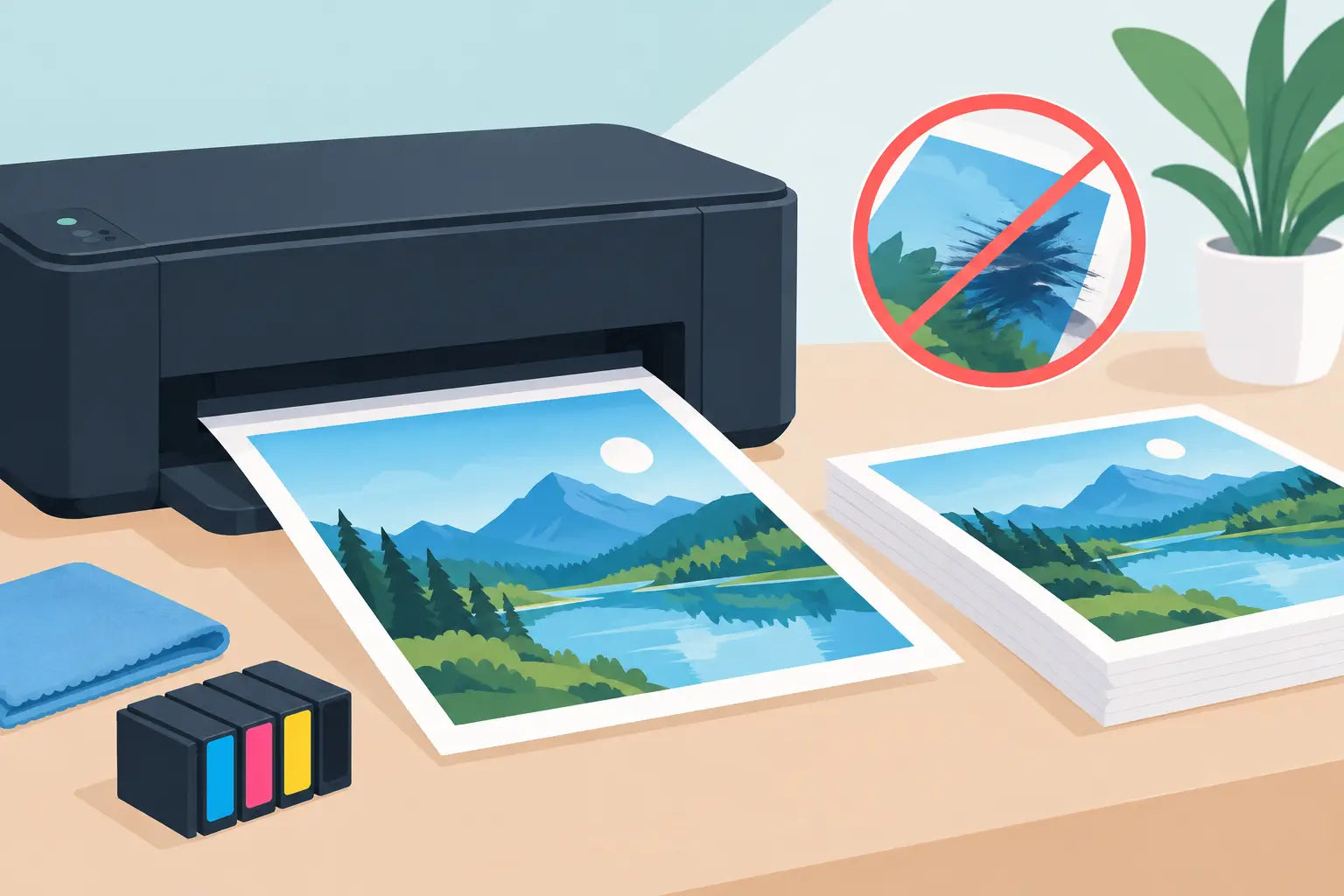
A freshly printed invoice that smears when you pick it up is more than annoying. It can make school work look messy, blur an important address label or hold up paperwork in a busy office. The good news is that learning how to stop ink smudging prints usually comes down to a few practical checks: the paper, your printer settings, cartridge condition and how the page is handled after printing.
Ink smudging is not always a sign that your printer is on its last legs. In many cases, a small adjustment produces cleaner, sharper pages straight away.
Why ink smudges on printed pages
Inkjet printers apply liquid ink to the paper, so the ink needs a surface it can settle into and enough time to dry. If either of those things is off, the ink can sit on top of the page and transfer to your fingers, another sheet or the rollers inside the printer.
Laser printers work differently. They use toner powder that is fused to paper with heat. A laser print that rubs off or smears may point to the wrong paper type, a fuser issue, excess toner or a cartridge problem. The symptoms can look similar, but the fix is different.
Before changing anything, consider when the smudging happens. Does it affect every page or only photo prints? Is the black text clear but coloured areas smear? Does the page look fine until it passes through the printer, or does it smudge only when touched? Those details help narrow down the cause instead of wasting ink and paper on guesswork.
Start with the paper, not the printer
The paper is often the simplest answer. Standard copy paper is designed for everyday documents, but it is not ideal for high-coverage colour prints, photographs or graphics with dark backgrounds. Thin, low-quality paper can absorb ink unevenly, wrinkle from moisture or let ink bleed through.
For regular documents, use clean, dry copy paper that suits your printer. Keep unopened packs sealed until needed, and store opened paper flat in a dry cupboard. Paper left near a window, in a humid room or beside a kettle can take on moisture from the air. That moisture slows drying and makes smudging more likely.
If you are printing photos, flyers or presentations, choose inkjet-compatible paper with the correct finish. Glossy photo paper, matte presentation paper and labels have coated surfaces made for particular print jobs. Printing on the wrong side of coated paper is a common cause of wet-looking, easily smudged prints.
Laser printer users should check that the paper is rated for laser printing. Inkjet photo paper can have a coating that does not tolerate the heat of a laser printer, while some labels may loosen inside the machine. Always follow the paper packaging instructions before loading it.
Check the paper setting every time you change media
Your printer needs to know what it is printing on. If it is set to plain paper while you are using glossy photo paper, it may lay down too much ink or use the wrong drying and feed settings. The result can be streaks, pooling or fingerprints across the image.
Open the print settings before sending the job and match the media type as closely as possible. Select plain paper for standard office sheets, photo paper for photo stock, and the appropriate label or envelope setting where available. Also check the paper size. A mismatch can affect how the printer feeds the sheet and where it applies ink.
Print quality matters too. High-quality or best-quality modes often use more ink. They are useful for photos and detailed images, but not every job needs them. For everyday forms and text documents, standard quality can reduce ink saturation and help pages dry faster.
Check cartridges and printheads
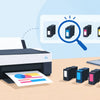
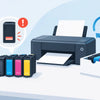
An old, damaged or poorly installed cartridge can cause inconsistent ink flow. You may see wet patches, streaks, blurred edges or colours that appear heavier than they should. First, check that each cartridge is correctly seated and that any protective tape has been removed. This sounds basic, but a missed seal can interfere with ventilation and ink delivery.
If your printer has been sitting unused for a while, run the built-in nozzle check or print quality report. Inkjet printers can develop partially blocked printhead nozzles, especially in dry conditions or after long periods without printing. Run a normal cleaning cycle if the report shows gaps or broken lines, then print another test page.
Avoid repeatedly running deep-cleaning cycles unless your printer specifically recommends it. They use a significant amount of ink and may not solve a problem caused by paper, settings or a worn component. One or two standard cleaning cycles followed by a test print is usually the sensible first step.
For printers with replaceable printheads, inspect the printer's maintenance messages rather than trying to wipe delicate components by hand. Touching the nozzle plate or electrical contacts can create a larger problem. If ink has built up around accessible areas, switch the printer off, follow the manufacturer cleaning guidance and use a lint-free cloth only where it is safe to do so.
Compatible cartridges can offer excellent value when they are made for your exact printer model and supplied by a reliable retailer. However, a cartridge that is not correctly matched to the model or has been stored badly may affect print quality. Whether you choose genuine or compatible cartridges, confirm the printer model before ordering and avoid using cartridges that are leaking, expired or visibly damaged.
Give the page time to dry
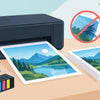
Even a perfectly working inkjet printer can produce a page that feels wet immediately after a heavy colour print. Handle it by the edges, particularly if it contains photos, maps, large blocks of colour or dark graphics. Place it on a clean, flat surface for a short time rather than stacking it straight into a tray.
Drying time depends on the ink coverage, paper coating, humidity and print setting. A plain black-and-white document may be ready almost immediately. A borderless photo on glossy paper may need several minutes before it can be safely stacked, filed or placed in a plastic sleeve.
Do not speed things up with heat from a hair dryer or by leaving the print in direct sun. Heat can curl paper, affect colour and create uneven drying. Good airflow at room temperature is the safer option.
Clean the printer's rollers and inside surfaces
Sometimes the ink is dry when it leaves the printhead, but it picks up a smudge as it travels through the printer. This often creates marks in the same place on every page, such as a line near one edge or repeated spots down the sheet.
Check for loose scraps of paper, label edges or visible ink residue in the paper path. Many printers include a roller-cleaning or paper-feed cleaning function in their maintenance menu. Running this process with plain paper can remove dust and residue that would otherwise transfer onto new prints.
If you can see a large ink spill, switch the printer off and consult its cleaning instructions before proceeding. Avoid spraying cleaning fluid inside the printer, using rough paper towel on sensitive parts or forcing anything into the paper path. Those quick fixes can damage rollers, sensors or printheads.
Laser printer owners should be especially careful around internal components. Toner is a fine powder, and the fuser can remain hot after use. If toner is smearing repeatedly despite using suitable paper and the correct settings, the cartridge, drum unit or fuser may need professional attention or replacement.
When smudging affects only certain jobs
If ordinary documents print cleanly but photos smear, the likely issue is paper choice, media settings or excess ink coverage. Use photo paper designed for your inkjet printer, confirm the glossy or matte setting, and allow extra drying time.
If only black text smears, inspect the black cartridge and run a nozzle check. If only one colour is causing trouble, the matching colour cartridge or printhead channel may be the source. When every colour looks overly wet, review the paper setting before assuming all cartridges are faulty.
For double-sided printing, give the first side enough time to dry before manually feeding it back through the printer. Automatic duplexing can work well on standard documents, but heavy colour prints on coated paper may need a slower approach. Printing one side at a time is less convenient, but it can prevent roller marks and ink transfer.
Stop ink smudging prints before the next rush job
The best prevention is simple: use suitable paper, keep cartridges fresh and correctly matched, choose the right media setting, and store paper away from moisture. A quick test page after changing cartridges or loading specialty paper can save a larger job from ending up in the rubbish.
If clean paper, corrected settings and a basic maintenance cycle do not improve the result, take note of the printer model, cartridge type and the exact marks on the page before seeking support. That information makes it much easier to identify whether you need a new cartridge, a printhead service or a printer repair. A few minutes of checking now can keep your next set of prints clear, dry and ready to use.